Climate Group Helper for Home Assistant



The advanced logic layer for your Home Assistant climate devices.
Sync, automate, and fix your thermostats — without a single line of YAML.
🔗 Group devices into one virtual controller.
🌡️ Fix inaccurate sensors with external calibration.
🪟 Detect open windows to pause heating automatically.
👤 Automate presence using away offsets and presets.
📅 Schedule automation via Schedule and Calendar entities.
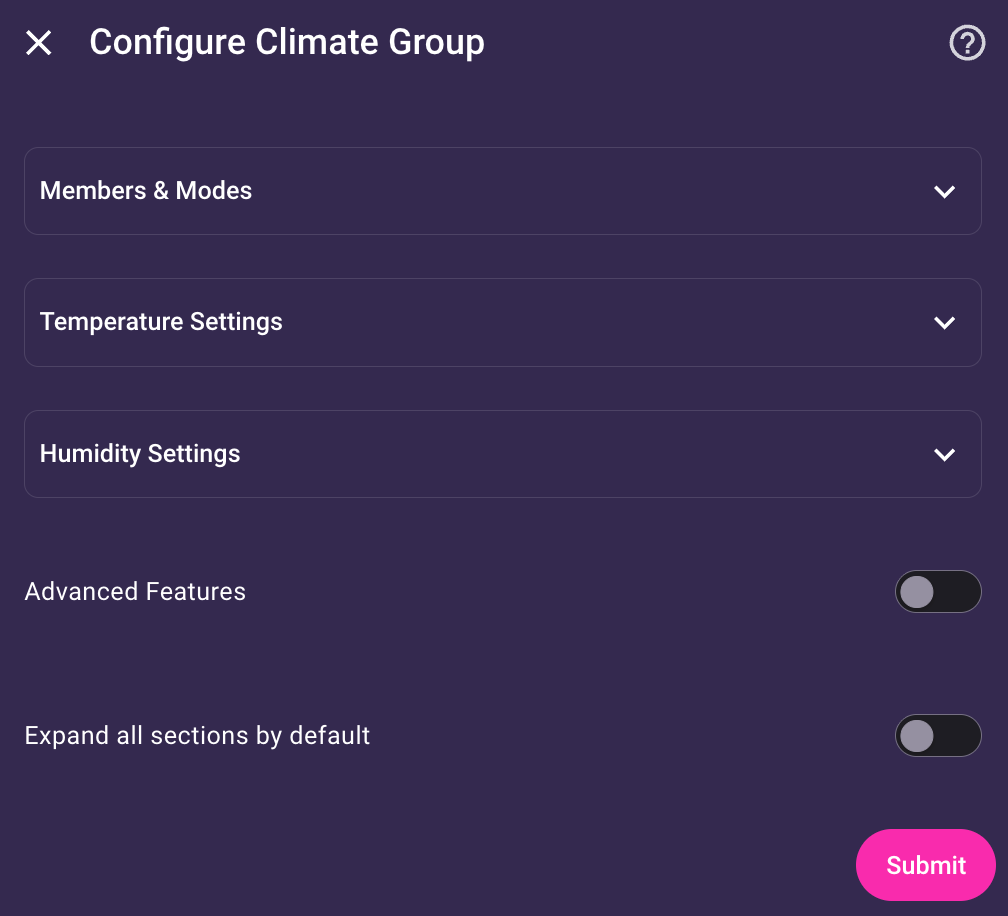
Managing climate in Home Assistant can be messy: TRVs measure the wrong temperature at the radiator, native groups lack synchronization, and complex automations are hard to maintain.
Climate Group Helper acts as the intelligent "Logic Layer" for your home. It wraps your existing devices into a single controller that handles the "If this, then that" behavior for you automatically.
Tip
Not just for groups! Even if you have only one thermostat, you can use this helper to add premium features like Window Control and Sensor Calibration to basic hardware.
Tip
Works with other integrations! CGH works with any climate.* entity — including those from Better Thermostat or Versatile Thermostat. Let them handle per-device regulation (MPC, PID, TPI), while CGH orchestrates the multi-room logic. See EXAMPLES.md for setup examples.
| Step | Action |
|---|---|
| 1. Install | Add via HACS and restart Home Assistant. |
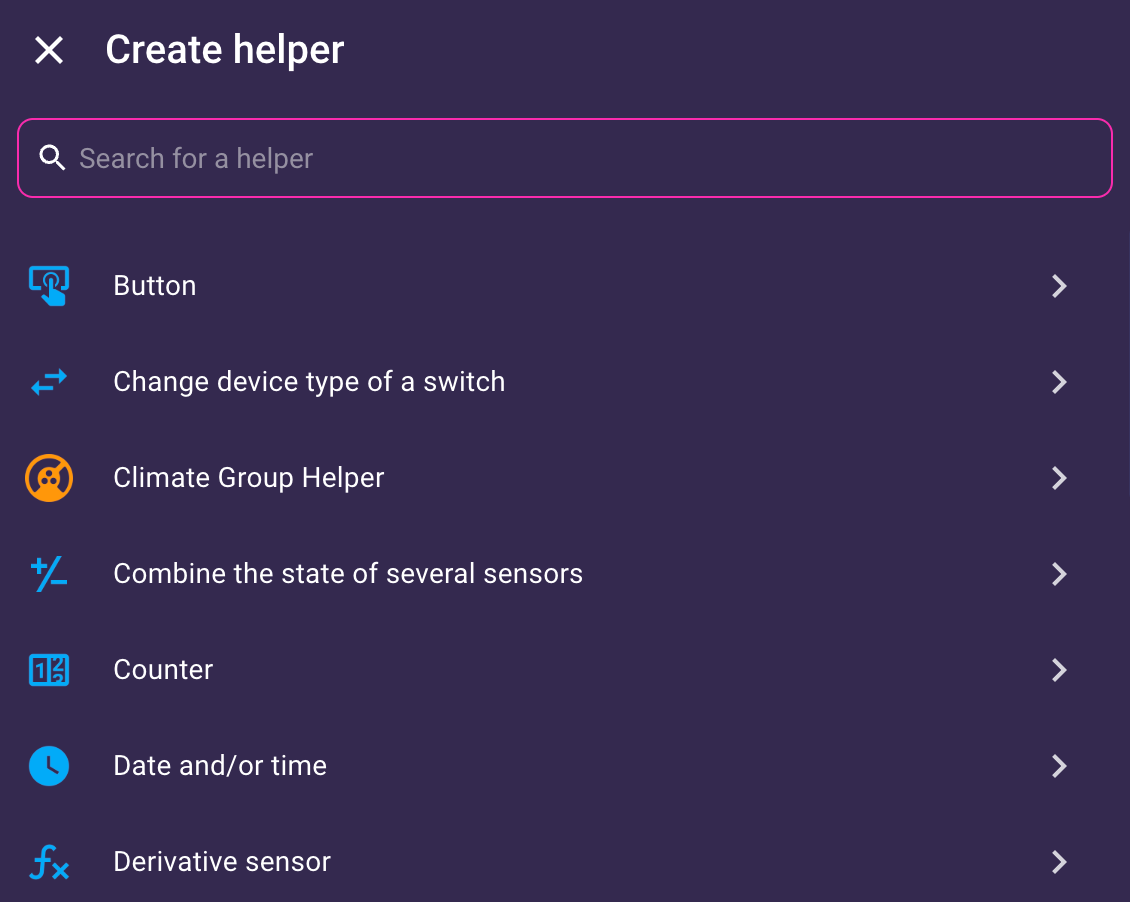
| 2. Add | Go to Settings → Devices & Services → Helpers → Create Helper. |
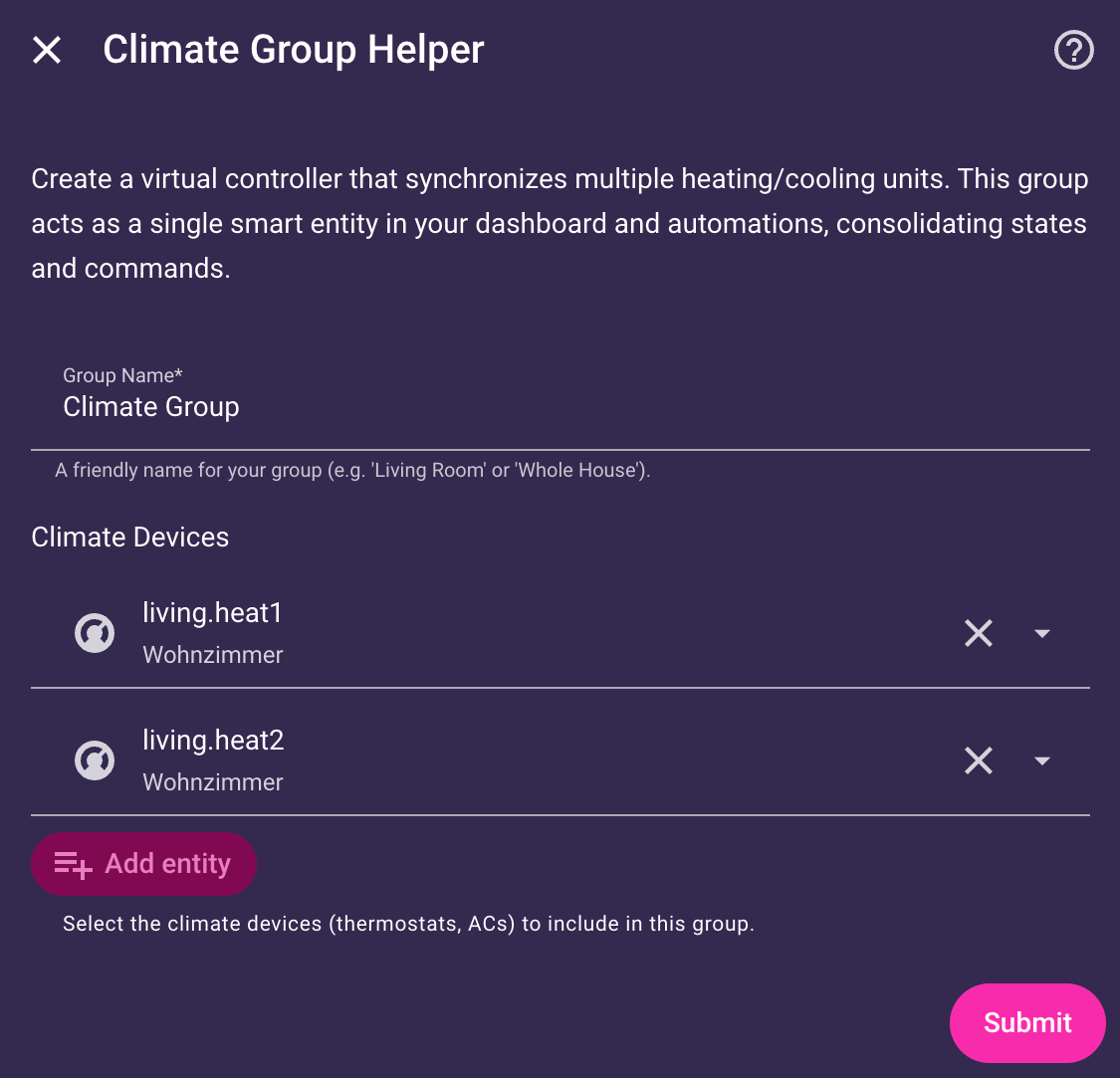
| 3. Setup | Give your group a name and select your thermostats (TRVs, ACs, heaters — mix freely). |
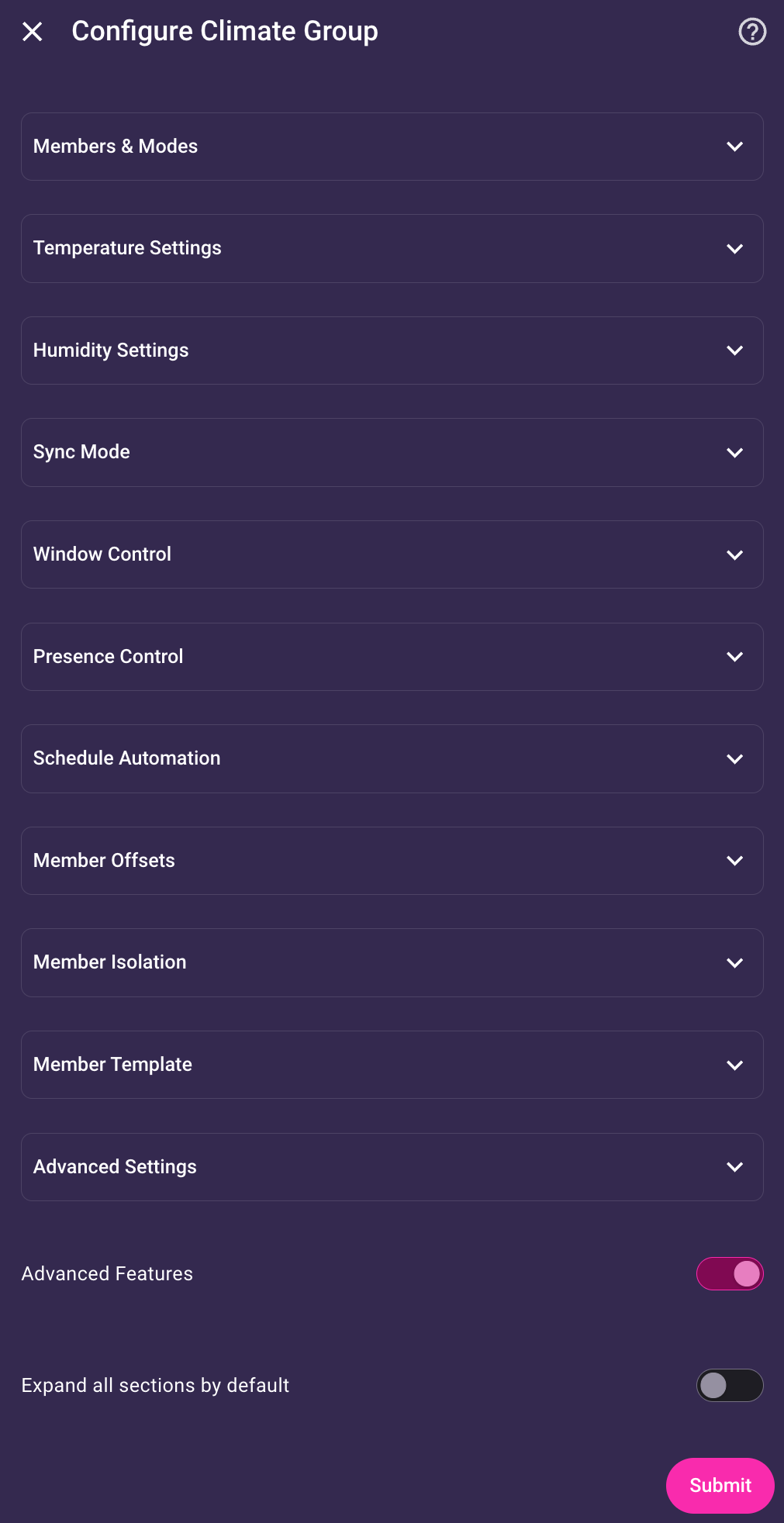
| 4. Done! | You now have a single entity controlling everything. Tip: Enable Advanced Mode in the options to unlock all features. |
- Core Concept
- Advanced Features
- Examples
- Management Entities (Switch & Slider)
- Configuration Options
- Services
- Backup & Migration
- Installation
- Setup
- Troubleshooting
The Climate Group Helper provides a robust "Single Source of Truth" for your climate devices. It creates a unified management layer that ensures your devices work together as one cohesive system while maintaining accurate room states.
These features are active by default and provide a streamlined "Plug & Play" experience:
- Unified Control: Change settings on the group, and all member devices update to match. No more managing multiple thermostats individually.
- Smart State Aggregation: The group calculates the average of member readings to represent the true room state (Mean, Median, Min, or Max).
- HVAC Strategy: Intelligent logic to determine the group's state (Normal, Off Priority, or Auto).
- Precision & Rounding: Round target temperatures to device-compatible steps (0.5° or 1°) to ensure compatibility with all hardware.
Unlock the full potential of your climate system. These specialized features are enabled by toggling Advanced Features in the group's configuration. Toggling back to Simple Mode hides these options and puts the features into hibernation — they stop running functionally, but your configuration remains intact and will be immediately restored when you switch back.
Note
New groups start in Simple Mode. Existing groups upgraded from earlier versions keep Advanced Features active automatically so nothing breaks.
Designate a single climate member as the Reference Point or Leader for the group. This is the first thing you configure in the setup wizard — and once set, it unlocks additional options in every subsequent step (Sync Mode, Window Control, and Temperature/Humidity averaging).
- Centralized Target Display: Show the Master's target settings (temperature, humidity) as the group's displayed target, rather than calculated averages across all members. This affects only how the group state is displayed — it does not control or synchronize members (use Sync Mode: Master/Lock for that).
- Hierarchical Sync (Master/Lock): Enables a "Follow the Leader" sync mode. Changes on the Master are mirrored to all members; manual changes on other members are automatically reverted.
- Intelligent Window Control: If enabled, only manual adjustments on the Master update the target state while windows are open. Changes on other devices remain ignored.
Use multiple external sensors for temperature and humidity to override member readings, and optionally write the values back to TRV calibration targets.
Write the external sensor value back to your TRVs to fix their internal temperature reading.
- Modes: Absolute (Standard), Offset (Delta calculation), and Scaled (x100 for Danfoss Ally).
- Heartbeat: Periodically re-sends the calibration value to prevent sensor timeouts on Zigbee devices.
- Ignore Off Members: Prevents sending calibration updates to TRVs that are currently turned
off, preserving battery life on wireless devices.
Controls what happens when a member device is changed directly (e.g. via its own app or physical buttons) — not when you control the group itself.
-
Sync Modes
The behavior of each mode depends on whether the changed attribute under Sync Attributes is selected or not. Think of the two columns as two independent policies the mode applies:
Sync Mode Attribute selected Attribute not selected Disabled Ignore Ignore Mirror Mirror ¹ Ignore Lock Revert ¹ Ignore Mirror/Lock Mirror ¹ Revert ¹ Master/Lock Master: Mirror · Non-master: Revert ¹ Ignore - ¹ With Respect Member Off State (Sync) enabled: members that are manually turned
offare left alone and theiroffis neither mirrored nor reverted.
- ¹ With Respect Member Off State (Sync) enabled: members that are manually turned
-
Sync Attributes
With Sync Attributes, you can select specific attributes, like
hvac_mode,temperature,preset_modeto be included for syncing. The meaning of the selected or unselected attributes depends on the Sync mode:Mode Role of Sync Attributes Mirror selected attributes are mirrored, unselected attributes are ignored. Lock selected attributes are reverted, unselected attributes are ignored. Mirror/Lock selected attributes are mirrored, unselected attributes are reverted. Master/Lock selected attributes are mirrored from the Master Entity, unselected attributes are ignored. Changes from non-master devices are always reverted. -
Respect Member Off State (Sync): When a member is manually turned
off, the group neither mirrors thatoffto others nor forces it back on — the member is simply left alone. The one exception: if it is the last active member, the group accepts theoffand its own target switches tooffas well.
Automatically turn off heating or set a frost-protection temperature when windows or doors are opened, and restore the previous state when they close. While windows are open, manual changes are blocked. Supports binary sensors and cover entities.
- Room + Zone Sensors: Supports fast-reacting room sensors vs. slow-reacting zone sensors (e.g. for whole floors).
- Configurable Delays: Set custom reaction times for opening and closing.
- Window Action: Choose between full
offor a configurable temperature setpoint. - Adopt Manual Changes: Optionally allow passive tracking:
- Off: All manual changes are blocked and discarded.
- All: Any manual change updates the target state. Applied when windows close.
- Master Only: (Requires Master Entity) Only changes on the Master update the target state.
Manage climate settings based on room presence. Select one or more triggers (binary sensor, device tracker, or person), optionally restricted to specific zones (e.g. to only trigger when someone is actually at 'Home'). Configure delays and fallback actions for when the room becomes empty. The group is considered occupied if any sensor reports presence.
- Turn Off: Members are turned
offwhile absence is detected (default). - Away Offset: Target temperature is reduced by a fixed offset (e.g. −2°C). The offset is applied relative to the group's current target temperature. If a schedule changes during absence, the offset is automatically reapplied to the new scheduled value.
- Away Temperature: Members are set to a fixed absolute temperature.
- Away Preset: A preset mode is sent to members that support it.
When presence returns, the group restores all members to the current target state. Priority order: the Main Switch always wins over Window Control, which in turn always wins over Presence Control.
Integrate native HA schedule or calendar helpers to automate your climate settings per time slot. You can set temperature and HVAC mode directly in the schedule's data, and the group intelligently handles transitions: if a schedule change occurs while Window Control is active (e.g. heating is paused), the new target is applied immediately once everything is closed.
Schedules can be switched on the fly via service (e.g. for "Vacation" or "Guest" modes). Calling the service without an entity resets to the configured default and re-applies the current slot.
- Calendar support:
calendar.*entities work the same asschedule.*entities. Slot data is read from each event's Description field using the samekey: valueYAML format as schedule Additional data. See Schedule Configuration & Meta-Keys for details. - Bypass Layer: A second
schedule.*orcalendar.*entity can act as a priority layer on top of your base schedule. When a bypass slot is active, its attributes override the base slot (bypass wins on conflicts). - Manual Overrides: Manual adjustments temporarily pause the schedule for a set Override Duration. By default, the group returns to the schedule as soon as the timer expires OR the next scheduled slot begins.
- Sticky Override: Ensures your manual setting persists for the full duration. If enabled, upcoming schedule transitions are ignored while the timer is running. The group only returns to the schedule once the timer actually expires.
- Periodic Resync: Force-sync all members every X minutes to ensure they match the target state.
- Schedule Persistence: Ensures that a schedule changed via service survives a Home Assistant restart. If disabled, the group always reverts to its configured default schedule after a restart.
- Respect Member Off State (Schedule): Members that are manually turned
offare skipped during scheduled changes and periodic resyncs — they are not forced back on.
- Create a Schedule Helper in Home Assistant (Settings > Devices & Services > Helpers).
- Open the schedule and add your time slots.
- Crucial: Each slot needs additional data to tell the group what to do.
- Click on a time block to edit it.
- Expand Advanced settings.
- Enter your desired state in the Additional data field.
Example (Additional data for a single slot):
hvac_mode: heat
temperature: 21.5Any calendar.* entity works — including calendars imported via integrations like Google Calendar, Apple Calendar, or Nextcloud. Slot data is read from each event's Description field.
Important
The Description field must contain only valid YAML. Any other text (e.g. a plain-text event description) will cause the event to be skipped. Keep the description field exclusively for the slot data.
Example (Calendar event description):
hvac_mode: heat
temperature: 21.5
You can use any climate attribute or meta-key in both schedule and calendar slots — the format is identical.
You can omit attributes you don't need — for example, use only hvac_mode: "off" for a slot that turns heating off.
Supported climate attributes:
| Attribute | Example value | Notes |
|---|---|---|
hvac_mode |
heat, cool, off |
Depends on your devices |
temperature |
21.5 |
Single setpoint |
target_temp_low |
19.0 |
Lower bound (dual setpoint) |
target_temp_high |
24.0 |
Upper bound (dual setpoint) |
humidity |
50 |
Target humidity (%) |
preset_mode |
eco, comfort |
Device-specific |
fan_mode |
auto, high |
Device-specific |
swing_mode |
on, off |
Device-specific |
swing_horizontal_mode |
on, off |
Device-specific |
Schedule Meta-Keys — these control the group itself rather than its members, and are active for the entire duration of the slot:
| Key | Possible values | Example | Effect |
|---|---|---|---|
group_offset |
Float −5.0 … 5.0 | group_offset: 1.5 |
Temporarily sets the Group Offset for the slot duration. If you move the offset slider manually while this slot is active, your value takes over and the slot-end reset is skipped. |
sync_mode |
disabled, lock, mirror, master_lock |
sync_mode: disabled |
Temporarily overrides the configured Sync Mode for the slot duration. Useful for slots where you want members to be left alone (e.g. a "sleep" slot where manual adjustments are allowed). |
sync_attributes |
Any subset of: hvac_mode, temperature, target_temp_low, target_temp_high, humidity, fan_mode, preset_mode, swing_mode, swing_horizontal_mode |
sync_attributes: [hvac_mode] |
Temporarily overrides which Sync Attributes are synchronized for the slot duration. Useful for slots where you want to sync only the mode but let members manage their own temperature. Restores to the configured Sync Attributes setting when the slot ends. |
turn_off |
true / false |
turn_off: true |
Explicit two-state trigger: true turns all members off (equivalent to toggling the Main Switch off). false restores all members (equivalent to toggling the Main Switch back on). A slot without turn_off has no effect on the current state. The Main Switch and this meta-key are equal, interchangeable controls for the same block — whichever acts last wins, so you can always turn the Main Switch back on in the UI, even while a turn_off: true slot is active, and a later turn_off: false slot will likewise release a block you set manually via the Main Switch. |
presence |
away |
presence: away |
Temporarily activates the Presence Override (away mode) for the slot duration. If presence sensors are configured, the block is only restored at the slot end if no physical absence is detected (slot-away wins during its slot; sensor-away takes over at the slot end if occupants are still absent). Boost commands are rejected during slot-away, and Window Control actions take precedence. |
Example — night slot that turns everything off:
turn_off: trueExample — comfort slot that boosts all rooms by 1.5 °C above the preset setpoint and allows local adjustments:
preset_mode: comfort
group_offset: 1.5
sync_mode: disabled
The group normally runs in Lock mode. During this slot, sync_mode: disabled lets occupants tweak their own device without being reverted — useful when comfort preferences vary.
Apply permanent individual offsets (±20°C) to each group member to account for physical room differences. The group intelligently handles these offsets during averaging and synchronization: for example, if the group is set to 21°C, a bedroom with a −1°C offset receives 20°C while the living room (+0.5°C) receives 21.5°C. Your logical setting remains a consistent 21°C across all group interfaces.
- Correct Member Offset: Subtracts member offsets before averaging to show the room's logical setpoint instead of the raw physical temperature average.
Temporarily isolate specific members from the group using sensors or state triggers. While isolation is active, these devices are excluded from all group calculations and synchronization — as if they were not members of the group. At least one member must always remain active to ensure the group stays operational.
You can define up to 4 independent isolation rules per group, each with its own trigger, member list, delays, and isolation action — useful for rooms with mixed device types. For example, a room with both a radiator (heat-only) and an AC (heat/cool) can use one rule to isolate the AC when the group switches to heat, and a second rule to isolate the radiator when it switches to cool. Each rule's isolation action controls what command is sent to the member when isolation activates — either an HVAC mode (default: off) or a preset mode for devices that require a specific standby state.
- Binary Sensor: Isolation activates when a binary sensor (e.g. curtain sensor, occupancy helper) turns
on. - HVAC Mode: Isolation activates when the group's target mode matches a configured set (e.g. isolate radiators when switching to
cool). - Member Off: Automatically isolates individual members when they are turned
offmanually. Restoration occurs as soon as the device is turned backon. - Configurable Delays: Set custom reaction times for activation and restoration (Sensor and HVAC Mode triggers only).
- Isolation Action: Choose what command to send when a member is isolated. Default is
hvac_mode: off. For devices without a real off mode (e.g. KNX floor heating), usepreset_modeto set a safe standby preset (e.g.building_protection) instead.
A Member Template wraps individual group members with a virtual capability profile that differs from what their Home Assistant integration natively reports. From the group's perspective — and from all features built on top of it (Sync Mode, Schedule, Calibration, etc.) — the wrapped member looks and behaves like a device with a different set of capabilities. The physical device itself is unaffected.
Translates outgoing heat_cool range commands into single-setpoint commands for members whose HA integration only exposes a single temperature attribute, even though the underlying device physically supports auto-changeover. The group exposes target_temp_low and target_temp_high; each wrapped member receives a physical single-setpoint command based on the current room temperature:
-
Temperature below
target_temp_low→ sendheat+ low setpoint -
Temperature above
target_temp_high→ sendcool+ high setpoint -
Temperature within the band → send the configured Deadband Action
-
Deadband Action: What to do when the room is already within the target band: None (default), Turn Off, or Fan Only.
-
Automatic member detection: All members that do not natively advertise
heat_coolare automatically covered — no manual selection needed. Members with nativeheat_coolsupport are left unchanged. This also enablesheat_coolmode for groups consisting entirely of heat-only and cool-only devices, with no nativeheat_cooldevice required.
Alongside the main climate entity, the integration creates additional helper entities to provide direct control points for your dashboards and automations.
A dedicated switch entity acts as a master on/off toggle for the entire group. It is useful for summer months, extended absences, or any situation where you want the group completely disabled without touching your schedules or target settings. While the switch is off, all manual and automated commands are blocked.
- Switch OFF: Immediately turns all members
offand aborts any active boost. The group remains blocked until the switch is turned back on. - Switch ON: Releases the block and restores all members to the group's current target state.
A dedicated number entity allows you to apply a global temperature shift (±5.0°C) to all group members. Use it to temporarily adjust the room's comfort level without modifying your underlying schedule or target settings. The offset acts as a non-destructive layer: a +1.5°C offset shifts a 20°C morning setpoint to 21.5°C and automatically follows a schedule transition to 23.5°C in the evening.
- Auto-reset: Setting a temperature directly on the group (via UI or service) resets the offset to
0automatically. - Persistence: The offset value survives Home Assistant restarts.
| Option | Description |
|---|---|
| Master Entity | Designate one member as the group's Leader. Enables Master/Lock sync mode, Master-aware window tracking, and centralized temperature/humidity target display. |
| HVAC Mode Strategy | How the group reports its combined mode. See table below. |
| Feature Strategy | Which features the group exposes. See table below. |
| Out-of-Bounds Action | (Union only) What to do when a target temperature is outside a member's range. |
| Unsupported HVAC Mode Action | (Union only) What to do with members that don't support the requested mode. |
| Strategy | Behavior |
|---|---|
| Normal | Group shows most common mode. Only off when all are off. |
| Off Priority | Group shows off if any device is off. |
| Auto | Based on the group's target mode: acts like Normal while the target is off (group only shows off once every member is off), and like Off Priority while the target is an active mode (group only shows that mode once every member has left off). Useful for external automations that need the group's reported mode to confirm a command has fully landed on every member before considering it done. |
| Strategy | Behavior |
|---|---|
| Intersection | Features (e.g. Fan) supported by all devices. Safe mode. Temperature range is the narrowest common window across all members. |
| Union | Features supported by any device. Temperature range spans the full range across all members (widest min/max). When a target temperature falls outside a member's supported range, the configured Out-of-Bounds Action applies. |
| Action | Behavior |
|---|---|
| Off (Default) | Member is turned off when the target temperature is outside its supported range. Restored automatically when the target moves back in range. |
| Clamp | Member is set to its nearest supported limit (min_temp or max_temp). |
| Action | Behavior |
|---|---|
| Ignore (Default) | Member stays in its current mode if it doesn't support the target mode. |
| Off | Member is turned off when it doesn't support the target mode (e.g. AC when heating). |
| Option | Description |
|---|---|
| External Sensors | Select one or more sensors to override member readings. |
| Use Master Temperature/Humidity | (Requires Master Entity) Display the Master's target value as the group's target instead of the member average. Falls back to averaging if the master is unavailable. Display-only — this option does not control or synchronize members (use Sync Mode: Master/Lock for that). |
| Averaging Method | Mean, Median, Min, or Max—separately for Current and Target values. |
| Precision | Round target values sent to devices (e.g. 0.5° or 1°). |
| Calibration Targets | Write calculated temperature to number entities. Supports Absolute (Standard), Offset (Delta), and Scaled (x100) modes. |
| Calibration Heartbeat | Periodically re-send calibration values (in minutes). Helps prevent timeouts on devices that expect frequent updates. |
| Ignore Off Members | Prevents sending calibration updates to devices that are currently off, preserving battery life on wireless sensors and TRVs. |
| Exclude Off Members | Exclude members that are currently off from temperature calculations (both current and target). Prevents a cold, switched-off radiator from dragging down the displayed average. |
| Device Mapping | Automatically links external sensors to TRV internal sensors using HA Device Registry (for precise Offset calculation). |
| Min Temp Off | Enforce a minimum temperature (e.g. 5°C) even when the group is off. This ensures valves are fully closed for frost protection (essential for TRVs that don't close fully in off mode). |
| Option | Description |
|---|---|
| Sync Mode | What to do when a member is changed outside the group. Disabled: ignore everything. Mirror: mirror changes. Lock: revert changes. Mirror/Lock: mirror selected attributes, revert unselected attributes. Master/Lock (requires Master Entity): mirror changes from the Master Entity only, revert changes from non-master entities. |
| Sync Attributes | Which attributes the mode acts on. In Mirror: only selected attributes are mirrored, unselected = no action. In Lock: only selected attributes are reverted, unselected = no action. In Mirror/Lock: selected attributes are mirrored, unselected attributes are reverted. In Master/Lock: only the Master Entity's attributes are mirrored, unselected = no action. |
| Respect Member Off State (Sync) | Members that are manually turned off are left alone. Their off state is neither mirrored to others nor reverted back to the group target. Exception: if it is the last active member, the group itself switches to off (Last Man Standing). Direct group commands always reach all members regardless of this setting. |
| Option | Description |
|---|---|
| Window Action | Turn Off (Default) or Set Temperature. Useful for frost protection. |
| Adopt Manual Changes | Off (block all), All (passive tracking for all members), or Master Only (requires Master Entity). |
| Window Temperature | Target temperature to set when 'Set Temperature' action is selected. |
| Room Sensor | (Optional) Binary sensor (window/door) or cover entity for fast reaction. Covers are treated as "open" unless they are fully closed. |
| Zone Sensor | (Optional) Binary sensor or cover entity for slow reaction (e.g. apartment or floor). |
| Room/Zone Delay | Time before turning off heating (default: 15s / 5min). |
| Close Delay | Time before restoring heating after windows close (default: 30s). |
| Option | Description |
|---|---|
| Presence Control Mode | Disabled (default) or Enabled. |
| Presence Trigger | One or more entities reporting room presence (binary_sensor, device_tracker, or person). Any on or home state is treated as present; not_home and away are treated as absent. The group is occupied if any sensor reports presence. |
| Presence Zone | (Optional) One or more zone entities. If configured, a person/device_tracker sensor only counts as present when located in one of the selected zones. Leave empty to treat any non-away state as present. |
| Away Action | The fallback action to perform when absence is detected: Turn Off, Away Offset, Away Temperature, or Away Preset. |
| Away Offset | (Away Offset action) Offset from current target when away (e.g. −2.0°C or +2.0°C). |
| Away Temperature | (Away Temperature action) Fixed temperature to set when away. |
| Away Preset | (Away Preset action) Preset mode to activate when away. |
| Away Delay | Wait time (seconds) after sensor reports absence before activating away mode. |
| Return Delay | Wait time (seconds) after sensor reports presence before restoring. |
| Option | Description |
|---|---|
| Schedule Entity | A Home Assistant schedule.* or calendar.* entity to control the group. |
| Bypass Entity | (Optional) A second schedule.* or calendar.* entity acting as a priority layer. When a bypass slot is active, it overrides the base schedule. |
| Resync Interval | Force-sync members to the desired group setting every X minutes (0 = disabled). |
| Override Duration | Delay before returning to schedule after manual changes (0 = disabled). |
| Sticky Override | Ignore schedule changes while a manual override is active. |
| Respect Member Off State (Schedule) | Members that are manually turned off are skipped during scheduled changes and periodic resyncs — they are not forced back on. Direct group commands always reach all members regardless of this setting. |
| Retain Schedule Override | Persist the active schedule entity across restarts when changed via set_schedule_entity service. Without this, the group always reverts to the configured default on restart. |
| Option | Description |
|---|---|
| Offset per Member | Apply individual temperature shifts (±20°C, 0.5°C steps) so specific members run proportionately warmer or cooler than the group's target setpoint. |
| Correct member offset (Default) | Subtracts member offsets before averaging to show the room's logical setpoint instead of the raw physical average. |
| Option | Description |
|---|---|
| Number of Rules | How many independent isolation rules to configure (1–4). Each rule has its own trigger, members, delays, and action. Save after changing to reveal or hide additional rule sections. |
| Entities to Isolate | Which group members this rule isolates. |
| Trigger Type | Binary Sensor (activates when sensor is ON), HVAC Mode (activates when group mode matches), or Member Off (isolates each member individually when it turns off manually). |
| Isolation Sensor | (Sensor trigger) Binary sensor that triggers isolation when active. |
| HVAC Mode Trigger | (HVAC Mode trigger) The group modes that activate isolation. |
| Activate Delay | Time to wait after the trigger activates before isolating members. |
| Restore Delay | Time to wait after the trigger deactivates before restoring members. |
| Isolation Action | What to send to the member when isolation activates: Set HVAC mode (default: off) or Set preset mode (e.g. building_protection for floor heating without a real off mode). |
| HVAC Mode | (HVAC mode action) The HVAC mode to set on the isolated member (default: off). |
| Preset Mode | (Preset mode action) The preset to set on the isolated member. Falls back to hvac_mode: off if the preset is not supported by the device. |
| Option | Description |
|---|---|
| Enable Range Template | Enables automatic heat_cool range control for all members that do not natively advertise heat_cool. No manual selection needed — the group detects eligible members automatically. |
| Deadband Action | What to do when the room temperature is already within the target band (between target_temp_low and target_temp_high). None (default — no command, device regulates itself to the setpoint it already received), Turn Off, or Fan Only. |
| Option | Description |
|---|---|
| Debounce Delay | Wait before sending commands. Higher values prevent 'rapid-fire' commands when sliding controls, but feel slower (default: 0.5s). |
| Force Retry | Always send commands to all members, even if they already report the target state. Useful for IR-based AC units or other devices that may not reliably update their state after receiving a command. |
| Retry Attempts | Number of retries if a command fails. |
| Retry Delay | Time between retries (e.g. 1.0s). |
| Staggered Call Delay | Time to wait between individual commands to group members (0–2s, default: 0). Staggering calls prevents radio flooding in large Zigbee/Matter networks. Also applies to calibration writes. |
| UI Grace Period | Duration (seconds) for which the group displays the commanded value immediately after a UI action, before slow member devices echo their state back. Prevents visual flicker on the dashboard. Applies to all attributes: HVAC mode, temperature, humidity, fan/preset/swing modes. |
| Expose Smart Sensors | Create additional temperature and humidity sensor entities that reflect the group's current aggregated state (useful for historical graphs and dashboards). |
| Expose Member List | Add the entity_id attribute containing the list of all member entity IDs to the climate group helper entity (enables use of expand() templates). |
| Expose Configuration Sensor | Create a diagnostic configuration sensor entity (sensor.*_configuration) containing a portable JSON snapshot of all group settings under the settings_json attribute. |
Temporarily set the group to a target temperature for a fixed duration. When the timer expires, the group restores automatically to the active schedule slot (if configured) or its previous target state.
Service Fields:
| Field | Required | Description |
|---|---|---|
temperature |
No* | Absolute target temperature during boost (e.g. 24.0). |
temperature_offset |
No* | Relative offset added to the current target temperature (e.g. +3.0 or −2.0). |
duration |
Yes | Duration in minutes (minimum 1). |
*Either temperature or temperature_offset must be provided.
Manual changes (direct group commands or Mirror adoptions) abort the boost immediately. Lock enforcement does not. Boost is ignored while a group block (like an open window) is active. A boost ranks above the schedule and the bypass layer: schedule slot changes and bypass activations run in the background without touching the boosted temperature, and everything is re-applied once the boost ends. If the schedule turns the group off during a boost, the boost keeps the members running in their last active mode.
Example (absolute):
service: climate_group_helper.boost
target:
  entity_id: climate.my_group
data:
  temperature: 24.0
  duration: 30
Example (offset):
service: climate_group_helper.boost
target:
  entity_id: climate.my_group
data:
  temperature_offset: 3.0
duration: 30Dynamically change the active schedule entity for a group.
Service Fields:
| Field | Required | Description |
|---|---|---|
schedule_entity |
No | The entity ID of the new schedule or calendar (e.g. schedule.* or calendar.*). If omitted, the group reverts to its configured default schedule entity. |
Calling this service without an entity cancels any active override timers (including boost) and immediately re-applies the current schedule slot.
Example:
service: climate_group_helper.set_schedule_entity
target:
  entity_id: climate.my_group
data:
schedule_entity: schedule.guest_modeDynamically change the active bypass schedule entity for a group at runtime. The bypass schedule acts as a priority layer that overrides the base schedule. While a bypass is active, the group keeps tracking the base schedule in the background; when the bypass ends, the currently valid base state is restored (attributes only the bypass changed fall back to their pre-bypass values).
Service Fields:
| Field | Required | Description |
|---|---|---|
schedule_entity |
No | The entity ID of the new bypass schedule or calendar (e.g. schedule.* or calendar.*). If omitted, the group reverts to its configured default bypass schedule entity. |
Example:
service: climate_group_helper.set_schedule_bypass_entity
target:
  entity_id: climate.my_group
data:
  schedule_entity: calendar.holiday_schedule
Calling this service without an entity clears the bypass schedule and immediately re-applies the current schedule slot.
Apply a portable JSON configuration to a group. This is useful for copying logic settings between groups or restoring a backup from a configuration sensor.
Service Fields:
| Field | Required | Description |
|---|---|---|
settings |
Yes | A JSON object containing the configuration. Source: settings_json attribute from a Configuration Sensor. |
include_member_list |
Yes | If true, overwrites the list of member and isolation entities. |
include_entity_selectors |
Yes | If true, overwrites linked sensors and per-member offsets. |
By default, only logic settings (Sync Modes, Window Control, Schedules, etc.) are transferred. Set the two inclusion flags to true if you also want to copy the list of members and their linked sensors. The group name is always preserved.
Important
Reload Behavior: Calling this service triggers a full reload of the group entity. All active, non-persisted timers (e.g., Boost, Window delays) will be reset immediately. This is the same behavior as when making changes through the UI.
The integration provides built-in ways to snapshot, restore, and clone your logic settings.
- Configuration Sensor: Enable Expose Configuration Sensor (Advanced Settings) to create a diagnostic
sensorentity. Itssettings_jsonattribute contains a portable snapshot of all logic settings. - Diagnostics Download: Click Download diagnostics directly in the Device info panel (or via the integration's ⋮ menu).
Example — Copy settings from one group to another:
- Enable the configuration sensor on the source group.
- Call the
apply_configservice on the target group:
service: climate_group_helper.apply_config
target:
  entity_id: climate.bedroom_group
data:
  settings: "{{ state_attr('sensor.living_room_group_configuration', 'settings_json') }}"
  include_member_list: false
include_entity_selectors: false- Open HACS.
- Search for Climate Group Helper.
- Click Download
- Restart Home Assistant.
- Download the latest release.
- Copy
custom_components/climate_group_helperto yourcustom_componentsfolder. - Restart Home Assistant.
- Go to Settings > Devices & Services > Helpers.
- Click + Create Helper > Climate Group Helper.
- Follow the configuration flow to add your entities.
To unlock all features: Open the group's Configuration menu and enable Advanced Mode in General Settings. This will reveal all category-specific options.
If you experience strange behavior after an update (e.g. settings not saving), first try restarting Home Assistant. Re-creating the group usually resolves any remaining migration-related problems.
- Go to Settings > Devices & Services > Devices.
- Search for your Climate Group and click it.
- In the Device info panel, click the Climate Group Helper link (next to the icon).
- On the integration page, click the ⋮ menu (top right) and select Enable debug logging.
- Reproduce the issue, then disable logging. The file will download automatically. (Note: For startup-related issues, restart HA after enabling logging.)
Add this to your configuration.yaml (requires restart):
logger:
  default: info
  logs:
custom_components.climate_group_helper: debugIdeally, share the full log file. If you prefer not to share unrelated data, you can strip it down to only the integration's entries:
grep 'climate_group_helper' home-assistant.log > cgh.logFound a bug or have an idea? Open an issue on GitHub.
MIT License